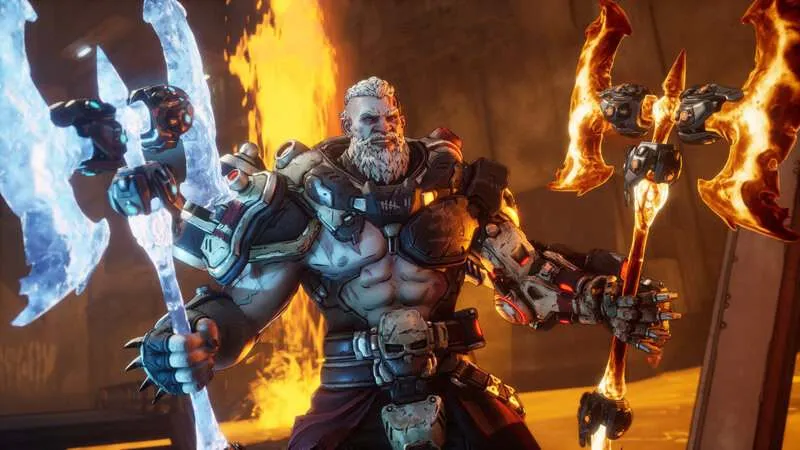
Borderlands 4 Not Changing Resolution or Full Screen/Borderless Window Not Working: Borderlands 4 launched amid widespread praise for its gameplay, but also with a number of technical issues—among them, problems with resolution and display modes on PC.
Many players have reported that after launch, the game “locks” into certain resolutions, disables alternate resolution options in Fullscreen mode, or refuses to properly switch between Fullscreen and Borderless Windowed modes.
Below, we’ll examine why these issues occur and walk through proven solutions and workarounds.
Symptoms You’re Likely Experiencing
Here are some common manifestations of the problem:
-
You open the Display or Graphics settings and attempt to change resolution in Fullscreen, but the drop‑down no longer includes higher (or some) resolutions.
-
When selecting a lower resolution in Fullscreen, the game removes the original (native) resolution from the selectable list, making it impossible to revert.
-
Borderless Windowed mode works, but Fullscreen is locked or broken.
-
Switching display modes (Fullscreen ↔ Windowed) sometimes causes resolution options to reappear temporarily.
-
The game is stuck at a low resolution (e.g. 1280×720) even when your monitor supports much higher resolution.
-
Alt-tabbing or switching modes causes display glitches or the window shrinks or becomes misaligned.
These issues have been widely reported by users on forums and subreddits. Reddit+2Reddit+2
Why This Happens: Root Causes & Game Behavior
Understanding why the game misbehaves helps in applying the right fix. Some causes and behaviors include:
-
Mode-switching bug in rendering code
Multiple guides note that Borderlands 4 seems to have a bug where changing to a lower resolution while in Fullscreen causes the engine to drop the higher resolutions list permanently (until a switch is forced) as it fails to “repopulate” the list. Sportskeeda+1 -
Restricted resolution logic per display mode
According to some guides, only certain display modes allow full resolution choices. For example, the in-game description says only Fullscreen and Windowed modes allow resolution choices (but in practice the bug disables Fullscreen’s choices). Sportskeeda -
Cached or “last confirmed” resolution settings
The game stores resolution values in configuration files (INI) and may reference “LastUserConfirmedResolution” values. If those are corrupted or stuck, the in-game options may become filtered. Steam Community+1 -
Overlay / software / driver interference
In some cases, third-party overlays or GPU driver features interfere with resolution switching. For example, Steam, GeForce/AMD overlays, or screen capture utilities. patchcrazy.co.uk -
Shader cache / graphics engine recompilation
Every time you change graphics settings, Borderlands 4 must recompile shaders. If this process is disrupted, settings may not apply correctly. support.borderlands.com -
Driver or GPU bug
Some reports suggest certain GPU driver updates introduced issues, causing users to roll back to older drivers to regain functionality. Reddit+1 -
Multiple-monitor / display order complications
If you have multiple monitors or an extended desktop layout, the game may mis-detect which monitor is primary or where to apply Fullscreen. Some users workaround by disabling secondary monitors. Reddit
Because the problem involves interplay of the game engine, GPU drivers, config files, and overlays, there’s no one-size-fits-all fix—but a layered approach usually resolves the issue.
Step-by-Step Fixes & Workarounds
Below is a structured list of methods you can try. Try them in the order below, and test the game after each step to see if the issue is resolved.
1. Toggle Display Modes (Windowed → Fullscreen) Trick
This is one of the most commonly reported fixes and often works immediately:
-
Go to Settings → Visuals / Graphics / Basic in the game.
-
Set Display Mode to Windowed (not Windowed Fullscreen).
-
Choose a resolution (any) and press Apply.
-
Then switch the Display Mode to Fullscreen.
-
Now, check whether all resolution options are back and select your desired resolution.
-
Apply and exit the menu.
Many users confirm this trick restores dropped resolution choices. Reddit+3Sportskeeda+3Deltia’s Gaming+3
2. Edit the INI / Configuration File Manually
If the in-game settings are non-responsive, you can manually force your resolution:
-
Navigate to your Windows Documents folder:
Documents\My Games\Borderlands 4\Saved\Config\Windows\ -
Open GameUserSettings.ini with a text editor (Notepad, etc.).
-
Locate the lines:
-
Change these to your desired values (e.g., 2560, 1440 etc.).
Some users also adjust both the “ResolutionSize” and “LastUserConfirmedResolution” lines to match. support.borderlands.com+3Reddit+3Steam Community+3 -
Save the file and make sure it is not set to “Read-only.”
-
Launch the game again and see if the resolution is set correctly.
Be careful: if you input unsupported values, the game might refuse to run or revert. Always keep a backup of the original INI.
3. Reset / Delete Configuration & Let the Game Recreate
If the config files are corrupted:
-
Close the game.
-
Navigate to the same
Saved\Config\Windowsfolder. -
Rename or delete GameUserSettings.ini (or back it up).
-
Launch the game, which should recreate the file with default settings.
-
Immediately go into settings and pick the correct resolution and mode.
This “factory reset” often fixes weird state bugs.
4. Clear Shader Cache & Reboot
Since graphics changes force shader recompilation, leftover cache may interfere:
-
For NVIDIA GPUs: Delete files in
%LOCALAPPDATA%\NVIDIA\DXCache(especially large files >10 MB). support.borderlands.com -
For AMD GPUs: Open AMD Adrenalin, go to Gaming → Graphics, scroll down, and choose Reset Shader Cache. support.borderlands.com
After clearing cache, reboot your PC to make sure no residue remains. Launch Borderlands 4 and let it recompile shaders (be patient for ~10–15 minutes). support.borderlands.com+1
5. Disable Overlays & Background Utilities
Sometimes overlays or screen capture tools block resolution changes. Try:
-
Disabling Steam overlay for the game.
-
Disabling GeForce Experience / Shadowplay, or AMD equivalent.
-
Turning off Discord overlay.
-
Exiting MSI Afterburner, Razer Synapse, RGB utilities, recording software, etc.
Many users report problems go away when these are closed. patchcrazy.co.uk
After disabling, start the game and see if resolution switching is restored.
6. Roll Back or Reinstall GPU Drivers
If the problem started after a driver update:
-
Roll back to a previous stable driver version (NVIDIA or AMD).
-
Clean install the drivers (remove remnants and reinstall fresh).
-
After reinstalling, test whether in-game resolution switching returns.
Some users found resolution reappeared after doing this. Reddit+1
7. Use a Single Display / Disable Secondary Monitors
If you have multiple monitors:
-
Temporarily disable secondary displays in Windows (Screen settings → “Show only on 1”).
-
Make sure your primary monitor is the only active display.
-
Launch Borderlands 4 and try selecting Fullscreen and resolution again.
-
Then re-enable the second monitor if needed.
This helps avoid confusion in the game detecting which monitor to use. Reddit
8. Update the Game / Apply Patches & Wait for Optimization Fixes
Because this is a widespread issue, the developers are likely to patch it. Indeed, Borderlands support acknowledges that shader compilation, stability, and graphics glitches are being addressed. support.borderlands.com
Keep the game updated and check official patch notes. It’s possible some of the resolution logic will be corrected in future patches.
Silent Hill f Not Changing Resolution or Full Screen/Borderless Window Not Working
Elden Ring Not Changing Resolution or Full Screen/Borderless Window Not Working
Example: A Real-World Fix Flow
Here’s a real user’s experience:
“I got Borderlands 4 yesterday, set resolution to 2560×1600 in fullscreen. Today the resolution dropped to 1920×1200 and I couldn’t set it higher. I switched to bordered (windowed), applied, then back to fullscreen—then all resolution options reappeared.” Reddit
Another:
“I set the resolution to 1280×720 and the drop-down no longer gave higher options. I edited the INI and switched to windowed then fullscreen, and the higher choices returned.” Reddit+1
These illustrate that the display-mode toggle + config editing is often sufficient to work around the bug.
Best Practices / Tips to Prevent Future Problems
-
Always apply mode changes before changing resolution (first Windowed → set resolution → Fullscreen).
-
After changing any graphics setting, be patient—allow shader recompilation to complete (~10–15 minutes) before judging if things failed. support.borderlands.com
-
When editing INI files, keep a backup copy of the original.
-
Avoid switching between resolutions often or aggressive changes; stick to stable native resolution when possible.
-
Keep overlays and utilities minimized or disabled during configuration changes.
-
Monitor GPU driver updates; only update when there’s a compelling reason, and keep older driver packages available.
-
Keep your game and supporting software updated—future patches may eliminate these bugs.
FAQs: Borderlands 4 Resolution & Display Mode Issues
Here are frequently asked questions about this topic, with concise answers:
Q1: Why can’t I change resolution when in Fullscreen?
Because of a rendering bug: selecting a lower resolution while in Fullscreen can cause the engine to drop higher resolution options from the list, essentially “locking” you out from selecting them. The internal list fails to repopulate. Reddit+3Sportskeeda+3Deltia’s Gaming+3
Q2: Why does toggling to Windowed mode restore resolution options?
Switching to Windowed mode forces the game to rebuild the available resolutions list without the buggy Fullscreen logic. When you then switch back to Fullscreen, the full list returns. Reddit+3Sportskeeda+3Deltia’s Gaming+3
Q3: Is editing the INI file safe?
Yes, as long as you’re careful. Always backup the file first. Use valid resolution values that your monitor supports. If the game fails to launch, you can restore the original. Many users successfully force resolutions via GameUserSettings.ini. Reddit+2Steam Community+2
Q4: Why doesn’t Windowed Fullscreen (Borderless) let me change resolution?
In practice, Borderless mode often locks the resolution to your current desktop resolution. The logic in the game may not allow custom resolution selection in that mode. The bug often appears more severely in Fullscreen but sometimes affects borderless too. Reddit+2Sportskeeda+2
Q5: What if none of these fixes work?
-
Try rolling back GPU drivers or reinstalling them.
-
Disable overlays and background utilities.
-
Ensure you are on the latest game patch.
-
Use a single monitor setup temporarily.
-
If all else fails, contact official support with your hardware specs and logs.
Q6: Will an official patch fix this?
It’s highly likely. The developers are aware of rendering, shader, and performance bugs in Borderlands 4 and have released guidance (e.g. for shader cache) and stability patches. support.borderlands.com+1
Q7: After I change resolution, will performance suffer?
Possibly. If you set a very high resolution, your GPU may struggle. Use upscaling (DLSS, FSR) or adjust visual settings accordingly. Follow community and official optimization guides for best performance. Icy Veins+2BLAST.tv+2
Q8: How long do shader recompilation delays last?
It could take ~10–15 minutes on first launch after changes. During this time, performance may be stuttery or inconsistent. support.borderlands.com