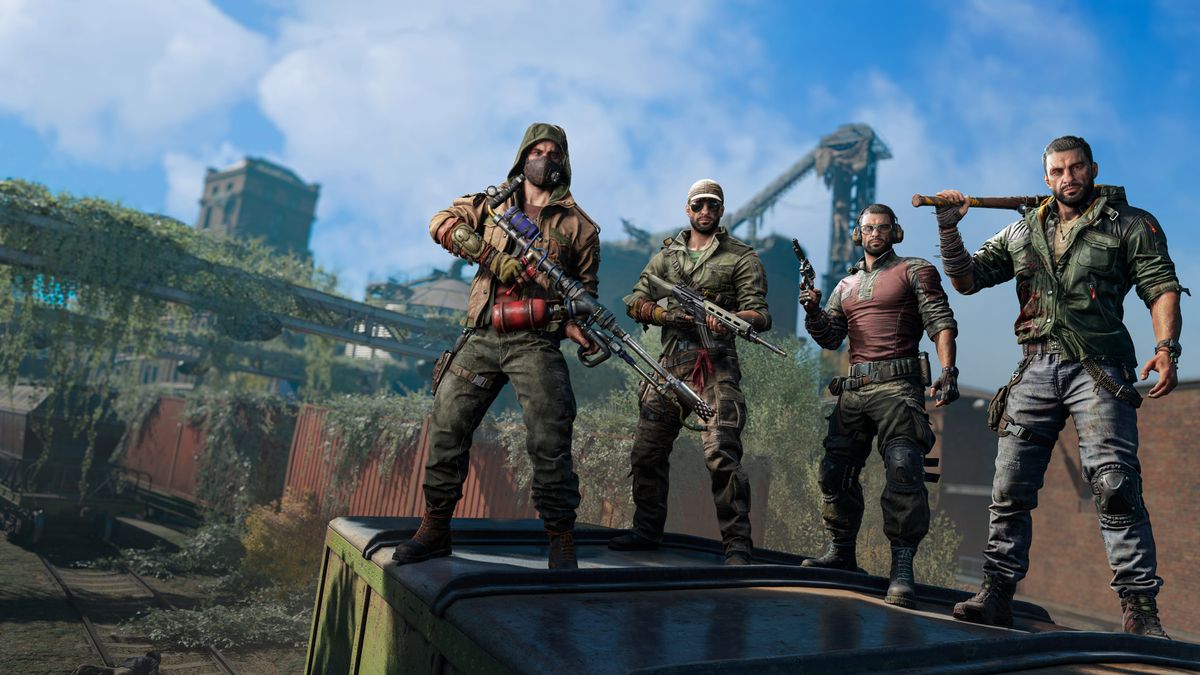
Dying Light 2 Controller Not Working: Few things ruin the mood faster than launching Dying Light 2: Stay Human—ready to slash, parkour, and explore Villedor—only to realize your controller isn’t responding. Whether you’re playing on PC, PS5, PS4, Xbox, or Nintendo Switch, controller issues can make the game nearly unplayable.
Many players report that their controller stops working, inputs aren’t detected, or that the game keeps switching between keyboard/mouse and controller. In other cases, Dying Light 2 doesn’t recognize the controller at all—even though it works fine in other games.
If this sounds familiar, you’re in the right place. This in-depth guide will cover every fix possible for controller issues in Dying Light 2, including how to fix unresponsive buttons, calibration problems, Bluetooth connectivity, and Steam controller detection errors.
Let’s dive right in.
🎮 Why Is My Controller Not Working in Dying Light 2?
Before jumping into fixes, it’s important to understand the root causes behind the problem. Controller detection in modern games like Dying Light 2 depends on multiple layers: hardware, drivers, Steam/Epic settings, and in-game input configurations.
Here are the most common reasons controllers don’t work properly:
-
Controller not detected by Windows or console
-
Incorrect input method (e.g., Steam Input vs. DirectInput conflict)
-
Outdated or missing controller drivers
-
Bluetooth interference or low battery
-
Conflicting background software (Razer Synapse, DS4Windows, InputMapper)
-
Gamepad emulation settings conflicting with Steam or Epic
-
Incorrect controller layout (Xbox vs. PlayStation mapping)
-
Corrupted input configuration or save files
-
Gamepad not prioritized when multiple input devices are connected
-
Outdated firmware on controller (especially DualSense or Xbox Elite)
Let’s go step-by-step through every fix that works.
⚙️ Basic Troubleshooting Steps
1. Restart Everything
It sounds cliché—but it’s effective.
-
Unplug your controller.
-
Restart your PC or console.
-
Reconnect the controller after the game has fully loaded.
-
Launch Dying Light 2 again.
This resets driver and input conflicts that might have developed during the last session.
2. Check Controller Connection
-
Wired controllers:
Try a different USB port, preferably a direct motherboard port (not a hub).
Also, test the cable with another game. -
Wireless controllers (Bluetooth):
-
Make sure the controller is charged.
-
Disconnect and re-pair it.
-
Avoid multiple paired devices that may interfere (like headphones or other controllers).
-
3. Test Controller Outside the Game
Before blaming Dying Light 2, confirm that Windows recognizes your controller.
-
Press Windows + R, type
joy.cpl, hit Enter. -
You should see your controller listed.
-
Click Properties → move sticks and press buttons to test input.
If nothing responds, your issue is system-level, not game-specific.
🧩 Fixes for PC Players (Steam, Epic, and Game Pass)
Fix 1: Disable/Enable Steam Input
Steam Input often causes conflicts depending on your controller type.
-
Open Steam Library → Right-click Dying Light 2 → Properties → Controller.
-
Under “Enable Steam Input,” choose the following depending on your controller:
-
Xbox Controller: Disable Steam Input
-
PlayStation Controller: Enable Steam Input
-
Generic/3rd Party Controller: Enable Steam Input
-
-
Restart Steam and relaunch the game.
This alone fixes controller recognition for over 60% of users.
Fix 2: Check Steam Big Picture Mode Settings
-
Open Steam → View → Big Picture Mode.
-
Navigate to Settings → Controller Settings.
-
Enable the correct configuration support:
-
✅ Xbox Configuration Support (for Xbox controllers)
-
✅ PlayStation Configuration Support (for DualShock/DualSense)
-
✅ Generic Gamepad Configuration Support (for others)
-
-
Make sure only the relevant one is checked.
Then restart the game and test your inputs.
Fix 3: Remove Multiple Connected Devices
If you have multiple input devices (keyboard, wheel, flight stick, or multiple controllers), DL2 might get confused.
-
Unplug everything except one controller and keyboard/mouse.
-
Launch the game again.
Fix 4: Run the Game as Administrator
Sometimes the game lacks access to input device permissions.
-
Go to
...\Steam\steamapps\common\Dying Light 2\. -
Right-click DyingLight2.exe → Properties → Compatibility.
-
Check Run this program as an administrator.
-
Apply and launch.
Fix 5: Reinstall or Update Controller Drivers
For Xbox Controllers:
-
Windows automatically installs drivers, but you can manually reinstall via:
-
Device Manager → Human Interface Devices → Xbox Controller → Update driver.
-
For PlayStation Controllers:
-
Install the latest DualSense firmware via Sony’s official updater tool.
-
If using DS4Windows, ensure it’s the latest version and that Steam Input is disabled to avoid overlap.
Fix 6: Calibrate Controller in Windows
If certain buttons or analog sticks aren’t responding:
-
Press Windows + R → type joy.cpl → Enter.
-
Select your controller → Properties → Settings → Calibrate.
-
Follow the on-screen instructions.
After calibration, restart your PC and re-test in-game.
Fix 7: Delete the Controller Configuration Files
Corrupted input files can block controller initialization.
-
Navigate to:
-
Delete files like:
-
inputs.scr -
game_settings.scr
-
-
Relaunch the game — it will regenerate fresh configuration files.
Fix 8: Disable DS4Windows or InputMapper (if used)
If you use DualShock or DualSense controllers via emulation software, disable third-party input tools temporarily.
These apps can conflict with Steam Input and cause the game to misread your controller as a “keyboard/mouse hybrid.”
Fix 9: Switch USB Modes (DirectInput/XInput)
Some generic or older controllers (e.g., Logitech, Hori) can switch between DirectInput and XInput modes.
Look for a physical switch or mode button on the controller and toggle between modes.
Dying Light 2 primarily supports XInput (the same used by Xbox controllers).
Fix 10: Reinstall Gamepad Drivers
Sometimes Windows installs conflicting generic HID drivers.
-
Open Device Manager → Expand Human Interface Devices.
-
Right-click any HID-compliant game controller → Uninstall.
-
Unplug your controller, then reconnect it.
Windows will reinstall the correct driver.
🕹️ Fixes for Console Players (PS5, PS4, Xbox, Switch)
If you’re playing on console and your controller stops working or keeps disconnecting:
Fix 1: Power Cycle Your Console
-
Turn off your console completely (not rest mode).
-
Unplug it for 2–3 minutes.
-
Reconnect and boot it up.
This resets temporary input and Bluetooth pairing glitches.
Fix 2: Re-sync the Controller
-
On PS5/PS4, use the USB cable to re-pair the controller.
-
On Xbox, press the sync button on both the console and controller.
-
On Switch, go to Controllers → Change Grip/Order and reconnect.
Fix 3: Update Console Firmware
New firmware updates often include controller fixes or performance patches.
-
PS5: Settings → System → System Software → Update System Software.
-
Xbox: Settings → System → Updates → Console Updates.
-
Switch: System Settings → System → System Update.
Fix 4: Update Controller Firmware
For example:
-
PS5 DualSense: Connect via USB and update through the console or PC updater.
-
Xbox Controller: Use Xbox Accessories app on console or Windows.
Firmware updates can solve random input lag or recognition issues.
Fix 5: Reset the Controller
-
PS4/PS5: Use a pin to press the small reset hole on the back for 5 seconds.
-
Xbox: Hold Power + Sync buttons for 10 seconds.
-
Switch Pro: Hold Power + + for 15 seconds.
Then re-pair and launch Dying Light 2 again.
🔧 Advanced Fixes
Fix 1: Edit Steam Launch Options
Add this command line to your Steam launch options to force XInput detection:
To do this:
-
Right-click Dying Light 2 → Properties → General → Launch Options → Paste the line above.
Fix 2: Disable Third-Party Overlays
Overlays from Discord, NVIDIA GeForce Experience, Razer Cortex, or MSI Afterburner can interfere with input detection.
Turn them off temporarily and relaunch the game.
Fix 3: Reinstall the Game
If controller issues persist even after all driver updates, it’s possible the input configuration files within the install are corrupt.
Backup your saves, uninstall, delete leftover files, and reinstall Dying Light 2 fresh.
💡 Bonus Tips for Better Controller Experience
-
Always plug in your controller before launching the game.
-
Avoid connecting multiple controllers simultaneously.
-
Keep firmware and drivers up to date.
-
For wireless controllers, maintain line of sight with your receiver or console.
-
Use official controllers when possible to avoid XInput compatibility issues.
-
Keep Steam, Epic, and Windows fully updated.
❓ Frequently Asked Questions (FAQ)
Q1: My controller works in Steam’s menu but not in Dying Light 2. Why?
That usually means Steam Input isn’t configured correctly for this title.
Try toggling Steam Input (enable or disable) in the game’s controller settings under Properties.
Q2: Does Dying Light 2 support PlayStation controllers on PC?
Yes, it does—but only when Steam Input is enabled.
If you’re using Epic or Game Pass, you’ll need DS4Windows to emulate Xbox input.
Q3: My Xbox controller keeps disconnecting during gameplay. What’s wrong?
Possible causes include:
-
Low batteries or unstable Bluetooth connection.
-
Outdated controller firmware.
-
Interference from other wireless devices.
Try connecting via USB to test stability.
Q4: Why does the game keep switching between keyboard and controller?
This happens if both input devices are sending signals.
Make sure your keyboard or mouse isn’t stuck or generating ghost input.
Alternatively, unplug them temporarily while playing with a controller.
Q5: My controller works only in menus, not during gameplay.
Corrupted input configuration is the likely culprit.
Delete the inputs.scr file in:
Restart the game—this rebuilds input mappings.
Q6: Can I use a third-party or generic controller?
Yes, but Dying Light 2 officially supports only XInput (Xbox-style) controllers.
If you use a generic one, switch it to XInput mode or use x360ce to emulate it.
Q7: I’m using DS4Windows—why isn’t it working anymore?
After certain Steam updates, DS4Windows can conflict with Steam Input.
Either disable Steam Input entirely or close DS4Windows before launching the game.
Q8: Will a PS5 DualSense controller provide adaptive triggers or haptic feedback on PC?
Not yet. Dying Light 2 doesn’t currently support DualSense haptic features on PC.
It will function as a standard controller.
Q9: How do I reset controller bindings in Dying Light 2?
Open Settings → Controls → Restore Defaults.
If that fails, delete the input config files from your Documents folder as described earlier.
Q10: My controller works fine in other games—why not here?
This suggests a conflict specific to Dying Light 2’s Steam or Epic configuration.
Verifying game files, resetting input files, or toggling Steam Input usually resolves it.
🧠 Final Thoughts
Dying Light 2 delivers one of the best open-world zombie experiences of the decade—but only if your controller actually works!
Most controller issues on PC stem from Steam Input misconfiguration, driver problems, or conflicting software. For console users, the culprits are usually firmware glitches, Bluetooth pairing issues, or controller resets.
Here’s a quick recap of the most effective fixes:
| Problem | Solution |
|---|---|
| Controller not detected | Enable/Disable Steam Input |
| Random disconnects | Re-sync or use wired mode |
| Buttons not responding | Delete inputs.scr and recalibrate |
| PS controller not working | Enable PlayStation configuration support |
| Multiple controllers | Unplug all but one |
| Generic pad not recognized | Use XInput mode or emulator |
| Console disconnects | Update firmware or reset controller |
After trying the steps above, your controller should function flawlessly—letting you jump, vault, and fight your way across Villedor with precision.