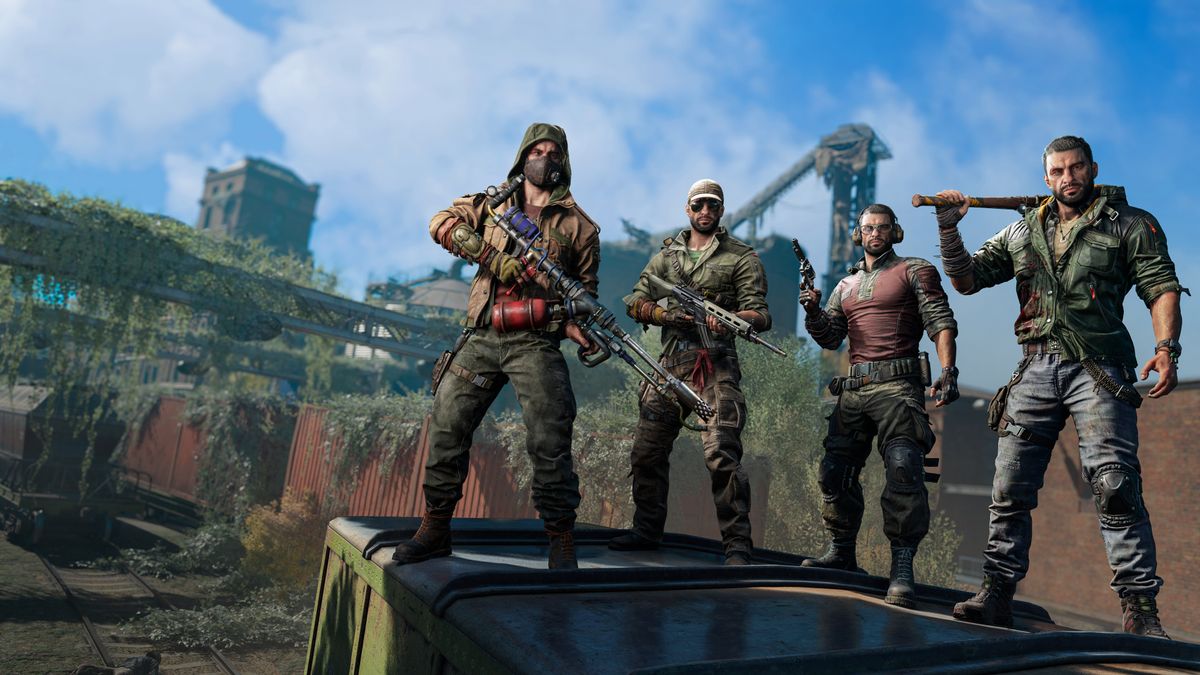
Dying Light 2 Won’t Launch or Not Loading on PC: When Dying Light 2: Stay Human refuses to launch, crashes before loading, or gets stuck on the splash screen, it’s frustrating — especially after long updates or reinstalls. This problem can occur for several reasons, ranging from corrupted files and outdated drivers to antivirus interference or conflicts with third-party overlays.
In this comprehensive guide, we’ll explain why Dying Light 2 fails to start on PC and walk you through step-by-step fixes to get the game running smoothly again. Whether you use Steam, Epic Games Launcher, or Game Pass for PC, these solutions cover all possible causes.
🧩 Why Dying Light 2 Won’t Launch on PC
If Dying Light 2 won’t open or hangs on the loading screen, it’s typically caused by one or more of these common issues:
-
Corrupted or missing game files – Updates or interrupted downloads may corrupt essential files, preventing the executable from running.
-
Outdated graphics drivers – Old or incompatible GPU drivers can cause black screens or instant crashes on startup.
-
Antivirus or firewall blocking game files – Security software can falsely flag DL2’s
.exeas a threat and block it. -
Administrative permission issues – Without the right privileges, the game may fail to load necessary components.
-
Conflicts with overlays and background programs – Steam, Discord, or GeForce Experience overlays can cause launch problems.
-
Outdated or missing DirectX, Visual C++ Redistributables, or .NET Framework – The game depends on these runtime libraries.
-
Overclocked hardware or unstable system memory – System instability can cause crashes before the game even loads.
-
Incorrect display resolution or video config – Corrupted or incompatible configuration files in the Dying Light 2 folder can stop the game before rendering.
Before diving into advanced troubleshooting, start with the basics.
⚙️ Basic Preliminary Fixes
1. Restart Your PC
It sounds simple, but restarting your computer clears temporary caches, stops lingering background processes, and frees RAM that may prevent the game from launching.
2. Run as Administrator
Sometimes, DL2 needs elevated permissions to access protected directories or system resources.
-
Right-click Dying Light 2.exe or the launcher shortcut.
-
Select Run as Administrator.
-
If it launches successfully, set it permanently:
-
Right-click → Properties → Compatibility → “Run this program as an administrator”.
-
3. Close Background Apps
Apps like MSI Afterburner, RivaTuner, Discord overlay, or OBS can conflict with the game.
Press Ctrl + Shift + Esc → Processes, then close unnecessary programs, particularly:
-
Game overlays (Steam, Discord, Xbox)
-
Screen recording tools
-
RGB or monitoring utilities
-
Third-party frame-rate limiters
🧰 Comprehensive Fixes (Step-by-Step)
Step 1: Verify Game Files (Steam & Epic)
Corrupted or missing files are the top reason Dying Light 2 won’t load.
For Steam:
-
Open Steam Library.
-
Right-click Dying Light 2 → Properties → Installed Files → Verify integrity of game files.
-
Steam will scan and re-download any damaged files.
For Epic Games:
-
Open Library.
-
Click the three dots (…) next to Dying Light 2.
-
Choose Manage → Verify.
When done, relaunch the game.
Step 2: Update GPU Drivers
Outdated GPU drivers can cause startup crashes or black screens.
-
Intel (Arc/Integrated): Download drivers here
After installing, reboot your PC and retry the game.
Also, avoid using Beta or Studio drivers unless necessary — stick with Game Ready editions.
Step 3: Disable Antivirus/Firewall Temporarily
Security programs can block Dying Light 2.exe or its Easy Anti-Cheat module.
For Windows Defender:
-
Go to Windows Security → Virus & Threat Protection → Manage settings.
-
Turn off Real-time protection temporarily.
-
Alternatively, add the game’s installation folder to Exclusions.
If the game launches afterward, whitelist DL2 and re-enable your antivirus.
Step 4: Install/Repair Required Runtimes
DL2 relies on:
-
DirectX 12
-
Visual C++ Redistributables (2015–2022)
-
.NET Framework 4.8+
To reinstall or repair:
-
Navigate to
...\Steam\steamapps\common\Dying Light 2\_CommonRedist\. -
Run the installers inside the vcredist and DirectX folders.
-
Restart your PC.
Missing these runtimes can cause immediate crashes without an error message.
Step 5: Delete or Reset Configuration Files
Corrupted settings can prevent the game from loading properly.
-
Press Win + R, type:
-
Delete or rename the files (
video.scr,audio.scr, etc.). -
Relaunch the game — it will regenerate default settings.
If the game previously opened on an unsupported resolution, this reset helps.
Step 6: Update Windows
Ensure Windows is fully updated:
-
Settings → Windows Update → Check for updates.
Install optional updates too — they often include driver and framework patches critical for modern games.
Step 7: Disable Fullscreen Optimization
-
Right-click Dying Light 2.exe.
-
Properties → Compatibility tab.
-
Check Disable fullscreen optimizations.
-
Apply → OK.
Many players report this fix helps with black-screen launches.
Step 8: Check for Overclocking or Performance Utilities
If you’ve overclocked your GPU/CPU/RAM using MSI Afterburner or BIOS tweaks, revert to stock speeds.
Some users experienced instant crashes due to unstable overclocks even if other games ran fine.
Step 9: Reinstall Easy Anti-Cheat
Dying Light 2 uses Easy Anti-Cheat (EAC), and corruption here can block launch.
-
Go to game directory:
-
Run EasyAntiCheat_Setup.exe.
-
Choose Repair Service.
-
Relaunch the game via Steam/Epic.
Step 10: Perform a Clean Boot
A background startup program may conflict with the game.
-
Press Win + R, type
msconfig. -
Go to Services → check Hide all Microsoft services → click Disable all.
-
Open the Startup tab → click Open Task Manager → disable all startup items.
-
Restart your PC and try launching DL2.
If it works, re-enable services one by one to identify the culprit.
Step 11: Reinstall the Game
If none of the above works:
-
Back up your saves (in
Documents\Dying Light 2). -
Uninstall via Steam or Epic.
-
Delete leftover files in the installation directory.
-
Reinstall fresh.
This eliminates persistent corruption or mis-configurations.
💡 Advanced & Lesser-Known Fixes
Check for Windows Compatibility Mode
Right-click the game executable → Properties → Compatibility → Uncheck any “Run this program in compatibility mode” boxes.
The game should run natively on Windows 10/11.
Force the Game to Run in Borderless/Windowed Mode
If DL2 crashes due to fullscreen scaling issues:
-
Right-click the game in Steam → Properties → Add launch option:
-
Try launching again, then switch to fullscreen in-game.
Disable Steam Overlay or Epic Overlay
Go to the game’s properties in your launcher and disable overlays.
Many players fixed startup crashes by disabling Steam Overlay entirely:
-
Steam: Settings → In-Game → Uncheck Enable Steam Overlay while in-game.
-
Epic: Settings → Uncheck Enable Overlay.
Set Game to Use Dedicated GPU
If you have both integrated and dedicated GPUs (laptops):
-
Open NVIDIA Control Panel → Manage 3D Settings → Program Settings.
-
Add Dying Light 2.exe → set Preferred GPU = High-Performance NVIDIA Processor.
-
Apply and relaunch.
Adjust Virtual Memory (Paging File)
Low virtual memory can cause launch crashes.
-
Search Advanced system settings → Performance → Settings → Advanced → Virtual memory → Change.
-
Check “Automatically manage…” or manually set a size 1.5× your RAM.
-
Reboot and test.
Update or Reinstall DirectX
Use Microsoft’s official DirectX End-User Runtime Web Installer to replace missing DLLs.
Check Event Viewer for Crash Logs
If the game exits silently:
-
Press Win + X → Event Viewer.
-
Under Windows Logs → Application, look for errors related to Dying Light 2.exe.
These logs can reveal missing DLLs or driver issues.
Re-enable Windows Game Mode & GPU Scheduling
-
Settings → Gaming → Game Mode → Turn On.
-
System → Display → Graphics → Default Graphics Settings → Turn on Hardware-accelerated GPU scheduling.
This may improve stability for some users.
Hollow Knight Won’t Launch or Not Loading on PC: How to FIX
Hollow Knight Crashing on Startup or Not Launching on PC: How to FIX
🧾 Optional Optimization Tips
Once you’ve fixed the launch issue, these tips help ensure DL2 keeps running smoothly:
-
Keep background apps (like browsers) closed while playing.
-
Ensure your power plan is set to High Performance.
-
Regularly clear DirectX shader cache:
-
Settings → System → Storage → Temporary Files → Check DirectX Shader Cache → Delete.
-
-
Keep Windows and GPU drivers updated monthly.
❓ Frequently Asked Questions (FAQ)
Q1: Why does Dying Light 2 open but close immediately?
That usually happens due to missing DLLs, corrupt config files, or blocked permissions.
Try verifying game files, reinstalling runtimes, and running as Administrator.
Q2: I see a black screen when launching — what do I do?
A black screen often means a display or driver issue.
Press Alt + Enter to toggle windowed mode, then adjust resolution.
If that fails, delete the video.scr file in the game’s settings folder.
Q3: Does reinstalling DirectX really help?
Yes. Many crashes stem from missing or outdated DirectX 12 components.
Use Microsoft’s official DirectX installer to repair these files.
Q4: Can mods prevent the game from launching?
Absolutely. Outdated or incompatible mods can break initialization.
Remove all mods from the game directory or disable mod managers, then verify files.
Q5: Should I delete my save data?
No, not unless Techland support specifically recommends it.
Save files rarely prevent launching; the problem lies with configuration or runtime files.
Q6: What’s the difference between “Won’t Launch” and “Not Responding”?
-
Won’t Launch = The executable never starts or closes instantly.
-
Not Responding = The game starts but freezes during the intro.
Both share causes (driver issues, overlays, corrupted cache), but “Not Responding” can also result from hardware acceleration or display-mode errors.
Q7: My PC meets specs, but it still won’t run. Why?
Even if your GPU/CPU meet minimum specs, outdated drivers, Windows bugs, or conflicting background apps can block launch.
Follow the clean-boot and runtime reinstall steps to eliminate those conflicts.
Q8: I use Steam Deck or Proton (Linux). Any tips?
Yes — verify you’re using the latest Proton GE version and that anti-cheat compatibility is supported. Some community builds provide better stability for DL2.
Q9: Will reinstalling Windows fix it?
That’s overkill. In 99 % of cases, the issue lies in drivers or corrupted files, not the OS. Only consider a full reinstall if other high-end games also fail to launch.
Q10: How can I contact Techland Support?
If nothing works:
-
Visit support.techland.pl.
-
Submit a ticket with:
-
Your hardware specs,
-
OS version,
-
Crash logs (if any),
-
Steps you’ve tried.
-
Their team can provide patch-specific guidance.
🧠 Final Thoughts
Dying Light 2 is an ambitious open-world survival game, but like many large-scale titles, it can run into startup issues.
Most players fix the “won’t launch” or “not loading” problem by verifying game files, updating GPU drivers, and reinstalling required runtimes. In more stubborn cases, disabling antivirus, repairing Easy Anti-Cheat, or performing a clean boot resolves it.
Here’s the summarized action list:
| Step | Fix | Works For |
|---|---|---|
| 1 | Verify game files | Corrupted install |
| 2 | Update GPU drivers | Black screen/crash |
| 3 | Run as Admin | Permission issues |
| 4 | Disable antivirus/firewall | Blocked .exe |
| 5 | Reinstall DirectX/VCRedist | Missing DLLs |
| 6 | Delete config files | Bad video settings |
| 7 | Clean boot | App conflicts |
| 8 | Reinstall Easy Anti-Cheat | Anti-cheat errors |
| 9 | Reinstall the game | Persistent issues |
If you’ve gone through all these fixes, there’s a 99 % chance Dying Light 2 will finally launch successfully on your PC.
So jump back in, parkour across Villedor, and enjoy Techland’s stunning zombie world — this time without the startup headaches.