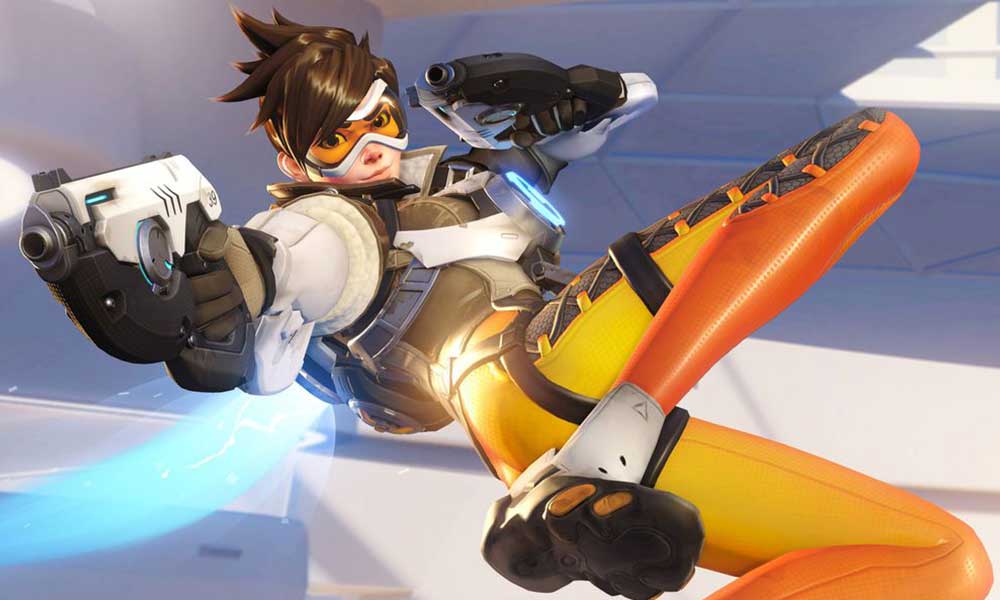
Overwatch 2 Crashing or Not Loading on PS4, PS5, and Xbox One, and Xbox Series X/S: Blizzard Entertainment has established a reputation for creating exceptional video games over the years, and their latest release, Overwatch 2, has quickly gained traction among multiplayer gaming enthusiasts.
Serving as a sequel to the original Overwatch, this game introduces an enhanced multiplayer experience, featuring both Player vs. Player (PvP) and Player vs. Environment (PvE) modes.
Unfortunately, many players have reported experiencing crashes while playing Overwatch 2 on consoles such as the PS4, PS5, Xbox One, and Xbox Series X/S.
If you find yourself encountering crashes during startup or gameplay, this troubleshooting guide is here to help you resolve these issues.
\It’s important to acknowledge that many gamers are facing various challenges, including bugs, server errors, crashes, black screen occurrences, graphical glitches, lag, stuttering, and frame rate drops. Additionally, server-related problems are also a possibility that players should consider.
Fix: Overwatch 2 Crashing on PS4, PS5, or Xbox One, Series X/S Consoles
So, without further ado, let’s jump into the guide below.
1. Check System Updates
Before exploring alternative solutions, it’s advisable to verify that your PlayStation or Xbox console is up to date, as an outdated system can lead to various problems.
For PlayStation users:
- 1. Navigate to the Settings menu on your console.
- 2. Choose “System Software Update” and check for any available updates. Follow the prompts to complete the update.
- 3. After the update is finished, restart your console to ensure the changes take effect.
For Xbox users:
- 1. Press the Home button on your controller to access the Dashboard.
- 2. Scroll down and select “Settings,” then go to “All Settings.”
- 3. Click on “System,” followed by “Updates.”
- 4. If an update is available, select “Update Console” and follow the instructions that appear on the screen.
- 5. Finally, restart your console to apply the new updates.
2. Delete Saved Game Data (PS4/PS5)
Corrupted or missing game files can lead to various problems, including crashes on PlayStation consoles. To troubleshoot this issue, we suggest deleting the saved game data for Overwatch 2 on your PS4 or PS5.
Here’s how to do it:
- 1. Navigate to the Settings menu on your console.
- 2. Select Storage.
- 3. Choose Saved Data, then find Overwatch 2.
- 4. Press the Options button on your controller and select the saved game data files you wish to remove (you can select one or multiple files).
- 5. Click Delete and confirm your action.
After you’ve completed these steps, restart your console to apply the changes. Please note that while the local saved data for Overwatch 2 will be removed from your PlayStation, your online progress will remain intact since it is stored in the cloud.
Following this procedure should resolve the crashing issues in Overwatch 2 on PS4, PS5, or Xbox consoles.
3. Rebuild Database (PS4/PS5)
Rebuilding the database on your PlayStation console can effectively address various issues or errors you may encounter. Here’s how to do it:
- 1. Begin by completely powering off your console. Disconnect the power cable and allow it to sit for approximately 2-3 minutes.
- 2. Reconnect the power cable, then turn the console back on. This action will help clear any cached data from the system automatically.
- 3. Check if the problem with Overwatch 2 has been resolved. If the issue persists, proceed with the following steps.
- 4. Press and hold the Power button on your PlayStation until you hear two beeps. The second beep will occur after about seven seconds.
- 5. Your console will enter Safe Mode. Connect your controller to the console using a USB cable, then press the PS button on the controller.
- 6. You will see an option labeled ‘Rebuild Database.’ Select this option and confirm your choice.
- 7. The process may take some time, depending on the amount of data stored on your hard drive, so please be patient.
- 8. Once the task is complete, simply restart your console normally.
By following these steps, you can help ensure your PlayStation runs smoothly and efficiently.
4. Reinstall Overwatch 2
If you continue to experience crashing issues with Overwatch 2, a thorough uninstallation and reinstallation of the game on your console may resolve the problem. Here’s how to do it:
**For PS4/PS5:
- 1. Navigate to **Settings** and select **Storage**.
- 2. Find **Overwatch 2** in the list and press **Delete**.
- 3. After the game has been uninstalled, return to the store to download and install it again.
**For Xbox:
- 1. Press the **Xbox button** on your controller to access the Guide menu.
- 2. Go to **My games & apps** > select **See all** > and then choose **Games**.
- 3. Navigate to the **Ready to install** tab and select **Queue**.
- 4. Locate **Overwatch 2** in the list for reinstallation.
- 5. Press the **Menu button** on your controller.
- 6. Choose **Manage game & add-ons** or **Manage app**.
- 7. Select **Overwatch 2** and click on **Uninstall all**. Confirm this action.
- 8. Wait for the uninstallation to finish, then reboot your console to apply the changes.
- 9. Reopen the Guide menu by pressing the **Xbox button** again.
- 10. Go to **My games & apps** > select **See all** > navigate to **Games**.
- 11. In the **Ready to install** tab, choose **Install** for Overwatch 2.
- 12. Allow the installation to complete, then restart your console once more.
Following these steps may help resolve the crashing issues with Overwatch 2 on your PS4, PS5, or Xbox console.
5. Reset the Console
If you’ve tried all other solutions without success, consider performing a factory reset on your console to see if that resolves the issue.
**For PlayStation:
- 1. Navigate to the Settings menu on your PlayStation console.
- 2. Select the ‘Initialization’ option, then choose either ‘Initialize PS4’ or ‘Initialize PS5’ as appropriate.
- 3. On the next screen, opt for ‘Full’ to initiate the complete reset.
- 4. Your console will begin the process of erasing all data and restoring factory settings. This may take a few hours, depending on the amount of data stored.
- 5. Once the process is finished, remember to restart your system.
**For Xbox:
- 1. Press the Xbox button on your controller to open the Guide menu.
- 2. Go to Profile & system, then select Settings.
- 3. Navigate to System and choose Console info.
- 4. From there, select Reset console.
- 5. You will see a prompt asking if you want to reset your console. Choose the option to Reset and remove everything. (Please note that this will erase all user data, including accounts, saved games, settings, and installed applications.)
- 6. While there is an option to Reset and keep my games & apps, this may not address the issue in most instances.
- 7. After confirming your choice, your Xbox will begin the reset process, restoring it to factory settings.
- 8. Allow the reset to complete, and then restart your console.
We hope this guide has provided the assistance you need. If you have further questions, feel free to leave a comment below.
Overwatch 2 Stuttering, Lags, or Freezing Constantly: How to FIX
Overwatch 2 Won’t Launch or Not Loading on PC: How to FIX
Overwatch 2 Stuck on loading screen on PC: How to FIX
Overwatch 2 Not Connecting to Server Error For PC, PS5, PS4, Xbox, Switch: How to FIX
Overwatch 2 Crashing or Not Loading on Nintendo Switch: How to FIX